Face Percentage Cropper for Exam Photos: Fix 75% & 80% Face Requirements Online
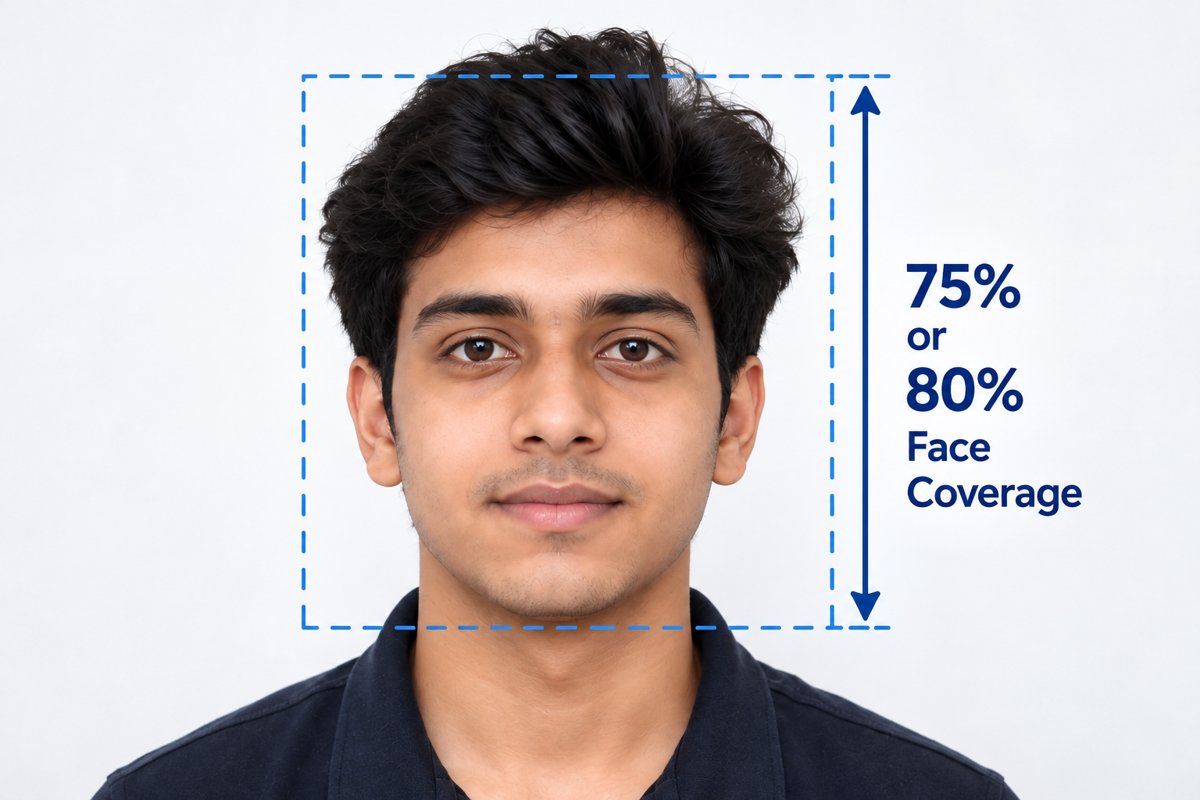
Recommended CTA: Upload your photo and crop it automatically according to the required face percentage.
Face Percentage Cropper
Upload a photo, pick 75% or 80% face coverage, crop and download — dimensions & file size below are optional.
Processed in your browser. Always confirm the final photo against your exam's official notification before submitting your application.
Face Percentage Cropper Online: What Is It and Why Do Exam Forms Ask for It?
When you fill an online examination or recruitment form, uploading a photograph is not always as simple as selecting any passport-size image. Many application portals specify how the candidate's face should appear inside the photograph. The instruction may be expressed as a percentage of the image, such as 75% face coverage or 80% face coverage, or as a visual requirement such as a full-frontal face, clearly visible ears, a plain background, or a face positioned inside a defined area.
This is where a face percentage cropper becomes useful. Instead of manually guessing how much of the photograph should contain your face, an automated tool can detect the face, calculate its position and dimensions, and create a crop that is closer to the requested composition. SahiPhoto's face percentage cropper is designed around this exact problem: helping candidates prepare an existing photograph for an exam application without repeatedly trying random crops.
“Face percentage” is not a universal rule for every examination. Requirements can change between exams, years and application portals. Always compare your final image with the latest official notification or information bulletin before submitting your application.
Why Does the Face Percentage Error Happen?
A common reason is that the original photograph contains too much space around the head and shoulders. Even if the image looks perfectly normal to a human, the face may occupy a smaller portion of the final frame than the application system expects.
The opposite can also happen. If you crop too tightly, part of the head, chin or ears may be cut off, or the face may become disproportionately large. A crop that technically increases face coverage can therefore create a different problem.
Another issue is that candidates often resize the entire image instead of changing the crop. Resizing changes the pixel dimensions but does not change the proportion of the photograph occupied by the face. If the portal is checking composition, simply reducing an image from 1000×1200 pixels to 300×400 pixels will not solve a face-percentage error.
Lighting, background, head angle, glasses, blur and face position can also affect automated validation. A face percentage cropper can help with framing, but it cannot turn a poor or non-compliant original photograph into a compliant one in every situation.
Face Percentage Requirements in Popular Indian Exams
The following examples illustrate why candidates search for face percentage photo tools. The exact requirement should always be checked against the current notice for the specific examination.
Face-percentage numbers here are examples from official documents, not a blanket rule for every exam. For an application you are submitting now, use the latest official notification as the final authority.
UPSC Photo Face Percentage: Why 75% Matters
UPSC has used a specific composition instruction in its Civil Services Examination notice: the candidate's face should occupy 3/4th of the space in the photograph. Three-fourths is equivalent to 75%. This is why candidates frequently search for terms such as “UPSC 75% face photo,” “UPSC face percentage error,” and “how to make face 75% in photo.”
If your face is too small inside the original frame, cropping around the face can increase its relative share of the image. However, the goal is not to zoom until the face fills the entire photograph. The head and facial features still need to remain properly visible and the photograph must comply with all other UPSC instructions.
A useful automated workflow is: detect the face → estimate the face bounding region → calculate a crop around it → preview the result → adjust if necessary → download the final image. A dedicated face percentage cropper can make this process much easier than repeatedly dragging a crop box by hand.
NEET 80% Face Coverage: What Does It Mean?
NTA's NEET (UG) information bulletin has instructed that the focus should be on the face, with 80% face coverage, ears clearly visible and a white background. This creates a different target from the 75% composition used in the UPSC example.
Candidates sometimes confuse “80% face coverage” with making the face occupy exactly 80% of the image width. That is not necessarily how an individual portal validates a photograph. The official wording and the portal's own preview or validation should guide the final crop.
For NEET and similar NTA applications, candidates should also pay attention to the background, clarity, glasses rules and whether the photograph meets the specified file format and size. Cropping alone does not fix every possible photo rejection.
75% vs 80% Face Coverage: What Is the Difference?
At first glance, the difference between 75% and 80% may look small. In practice, it can produce a noticeably different crop. If you use the same photograph for two applications with different requirements, the safest approach is to create a separate version for each application rather than assuming one crop will work everywhere.
- 75% target: commonly associated with the UPSC Civil Services photograph instruction expressed as 3/4th of the photograph.
- 80% target: used in NEET and some NTA-hosted application instructions for face coverage.
- Neither number should be treated as a permanent universal standard. Exam instructions can change.
- Do not stretch or distort the face to meet a percentage. Change the crop and framing instead.
How an Automatic Face Percentage Cropper Works
- Upload your photograph — select a clear, front-facing photograph. The tool accepts common image formats such as JPG and JPEG.
- Detect / mark the face — fit the box tightly to your face, hairline to chin and ear to ear.
- Choose the required percentage — select the target required by your application, such as 75% or 80%, or use a custom target if the official instructions specify another composition.
- Calculate the crop — the tool determines how much of the original image can be removed while keeping the face within the desired proportion.
- Preserve important facial features — the crop avoids cutting the top of the head, chin or relevant parts of the face and keeps the face positioned naturally.
- Preview the result — a live preview helps you check whether the final photograph looks natural and follows the application's visual instructions.
- Download the final image — the processed photo can then be resized or compressed further if the application also specifies exact pixel dimensions or file-size limits.
Why Simply Resizing the Photo Does Not Fix Face Percentage
This is one of the most important concepts for candidates. Image dimensions and face composition are different things. Suppose your original photograph is 1200×1600 pixels and the face occupies a certain portion of that frame. If you resize the entire image to 300×400 pixels, the face becomes smaller in pixels, but its proportional position inside the photograph remains essentially the same. A face-percentage problem therefore requires cropping or reframing, not only resizing.
A good exam-photo workflow often uses both operations: first crop the composition correctly, then resize and compress the resulting image to the exact dimensions and file-size range required by the application — which is why the dimension and file-size fields in the tool above are optional. Fill them in only if your exam specifies exact numbers.
Common Reasons Your Exam Photo Gets Rejected
- Face is too small compared with the full photograph.
- Face is too large because the crop is excessively tight.
- Ears are not visible where the exam specifically requires them.
- Top of the head or chin is cut off.
- Face is turned significantly to one side instead of facing the camera.
- Background is not plain or does not meet the stated requirement.
- Photo is blurred, dark, overexposed or low quality.
- Cap, goggles, mask or other prohibited covering is present.
- Glasses do not comply with the specific exam's instructions.
- Image dimensions or file size are outside the permitted range.
- Candidate uses a photograph that does not meet the required date or recency condition.
- Photo is altered in a way that violates the exam authority's rules.
How to Prepare a Photo Before Using the Cropper
- Use a recent, clear photograph whenever the examination notice requires a recent image.
- Stand directly facing the camera and keep your head reasonably straight.
- Use even lighting so facial features are clearly visible.
- Prefer a plain background when the exam requires one.
- Remove prohibited items such as caps or goggles when the official instructions say so.
- Do not use filters, face-smoothing effects or artificial edits that change your appearance.
- Keep the original photograph so you can create different versions for different applications.
Face Percentage Cropper vs Normal Image Cropper
Normal cropper
- You manually select a rectangular area.
- You must visually estimate whether the face is large enough.
- Useful for general image editing.
Face percentage cropper
- The crop is calculated around a detected/marked face.
- The tool uses a target percentage to guide the crop.
- Specifically useful when an application gives face-coverage or face-position instructions.
Can a Face Percentage Cropper Guarantee Exam Approval?
No online tool should promise guaranteed approval. A cropper can solve one part of the problem: the composition and approximate face coverage. Exam portals may also validate image dimensions, file size, background, clarity, date, facial visibility, file format and other requirements. The final decision belongs to the examination authority and its application system.
The safest workflow is therefore to use the official exam notification as the checklist and use SahiPhoto as a preparation tool to make the image easier to bring into the required format.
How to Fix “Face Is Not 75%” or “Face Coverage Is Too Low” Errors
- Go back to the original, highest-quality photograph.
- Open the face percentage cropper above.
- Choose the percentage stated by your exam instructions.
- Fit the box tightly around your face.
- Generate the crop and inspect the preview.
- If the crop cuts the head, chin or ears, use a different original photo or adjust the framing rather than forcing the crop.
- Download the cropped image.
- Run the image through the exam-specific resize/compression step if needed (or fill in the optional width/height/size fields above).
- Upload the final version to the official portal and check its preview/validation.
Why SahiPhoto.in Can Be Useful for Exam Applicants
SahiPhoto is built around common document-preparation problems faced during online exam applications. A dedicated face percentage workflow can reduce the guesswork involved in manually cropping a photograph. The same page connects face cropping with other useful steps such as image resizing, compression and exam-specific photo preparation. Candidates can prepare separate versions for different exams instead of trying to force one photograph into every portal's requirements.
Final Checklist Before Uploading Your Exam Photo
- Correct exam-specific face coverage or composition
- Full face visible
- Ears visible when required
- Plain/white background when required
- No prohibited cap, goggles, mask or other covering
- Correct image format
- Correct pixel dimensions
- Correct file size
- Clear and sharp image
- Correct photo date/recency where specified
- Appearance consistent with the examination's requirements
- Final image checked against the latest official notification
Frequently Asked Questions
It describes how much of the photograph is occupied by the candidate's face or the required facial area. The exact interpretation depends on the examination authority's instructions.
Use a crop that increases the relative size of your face while keeping the full face and other required features visible. UPSC has used a 3/4th face-space instruction in its Civil Services notice. Always verify the current notice.
Use a crop and framing that brings the face into the required composition while keeping the ears visible and following the other NEET photo rules. The current NTA bulletin should be treated as the final authority.
No. Resizing changes the pixel dimensions but does not, by itself, change the proportion of the original frame occupied by the face.
You may use the same original photograph as a starting point, but you should prepare separate crops if the two applications specify different composition requirements.
The problem may be something other than face percentage, such as file size, dimensions, background, clarity, date, glasses/cap rules or another portal-specific validation.
Only if the resulting image satisfies the examination's photo rules. A casual selfie may have unsuitable lighting, angle, background or perspective.
Use tools that clearly explain how images are handled. For sensitive identity documents, candidates should avoid uploading more information than necessary and should review the service's privacy practices.
Related SahiPhoto Tools
This article is for general guidance only and is not affiliated with UPSC, NTA or any examination authority. Requirements can change — always verify the current photo specification against your exam's official notification before submitting your application.